
|
 FAQ Home FAQ Home
 Curtain e-locker Curtain e-locker
 Installation Guide Installation Guide
User Guide
Curtain LogTrace
Curtain MonGuard
Curtain PrintTrail
Website Product Page
Curtain e-locker
Curtain LogTrace
Curtain MonGuard
Curtain PrintTrail |
| FAQ No.: | 00147 |
| Category: | Curtain Admin; Curtain Client; Feature - Send Request |
|
| | |
| Question: | How to set up Send Request in Curtain Admin?
|
| | |
| Answer: | If an unauthorized user needs to share a protected document with external parties, the user can submit a Request for approval. If the request is approved, the system will send the document to requester through email. Since the document is already out of the Protected Zone and not encrypted, requester can share it with external parties without the control of e-locker. The whole approval process will be logged in Audit Trail. This function is called Send Request.
Steps for Send Request:
1. Add approver information in Curtain Admin global settings.
2. Select the appropriate approver in the policy group of Curtain Admin .
Detailed steps for the setup:
Step 1. Add approver information in Curtain Admin global settings.
1.1. In Curtain Admin, select "File > System Contacts". (called "Approver Information" in versions prior to 5.0.3275.04)
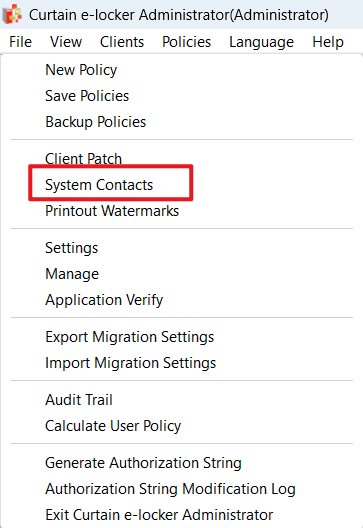
1.2. Click "Add" button to add approver.

1.3. There are two ways to add approver information.
- Method 1: Add approver information from Active Directory if the Curtain Admin has been configured to use AD user/user group (LDAP) .
- Method 2: Added approver information manually if the Curtain Admin is not connected to AD.
Method 1: Add approver information from Active Directory if the Curtain Admin has been configured to use AD user/user group (LDAP) .
P.S. Please refer to FAQ 00211 for importing users and user groups from AD domain.
1) A dialog box for select method of adding approver will pop-up when using AD user/user group (LDAP) in Curtain Admin.
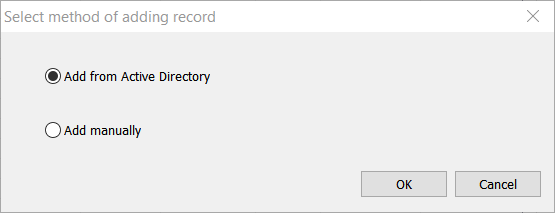
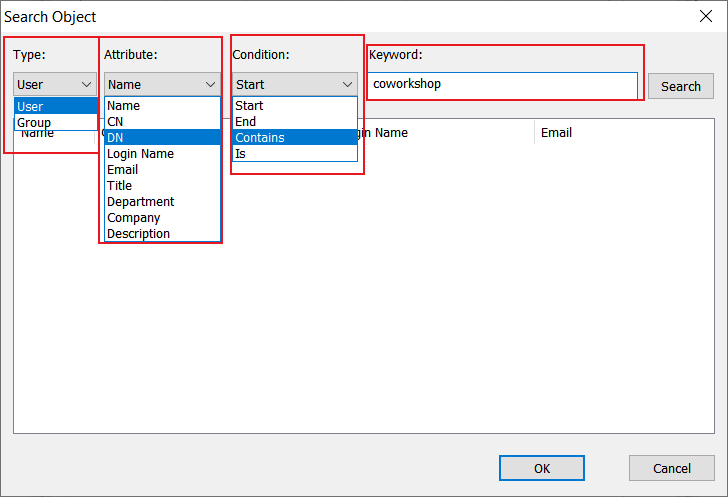
2) Select "Add from AD", there are some search combinations for help to choose approvers in the search results of AD domain.
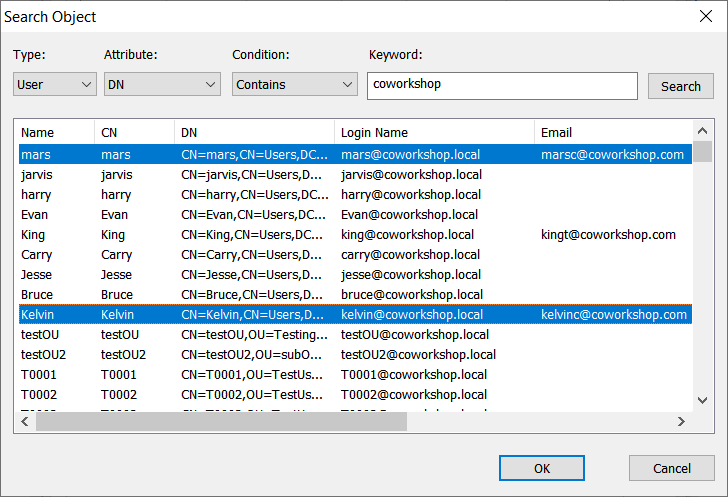
3) Select the approvers in the search results list and click "ok" to add these users.
Method 2: Added approver information manually if the Curtain Admin is not connected to AD.
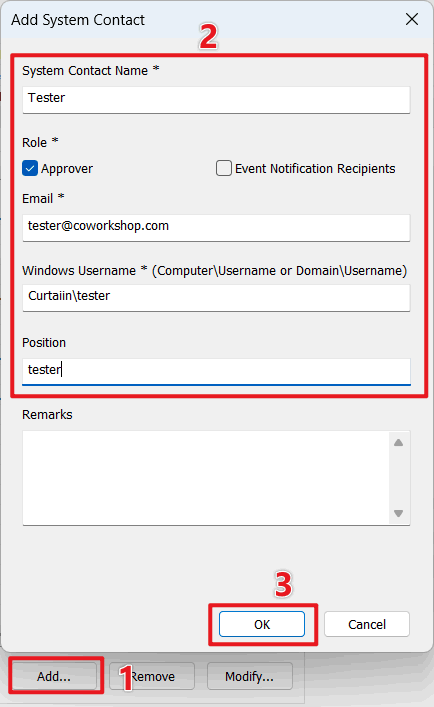
1) Click "Add" , the "Add System Contact Name" dialog box will pop up.
2) Select the role as Approver, and enter the System Contact Name, email, windows username and position.
P.S. For the field of Windows Username, please enter "computer\username" OR "domain\username" (such as, M32w2k8-PC\Administrator and Curtain\Tester).
3) Clicking "OK" , the approver information is successfully added to the list.
Step 2. Select the appropriate approver in the policy group of Curtain Admin .
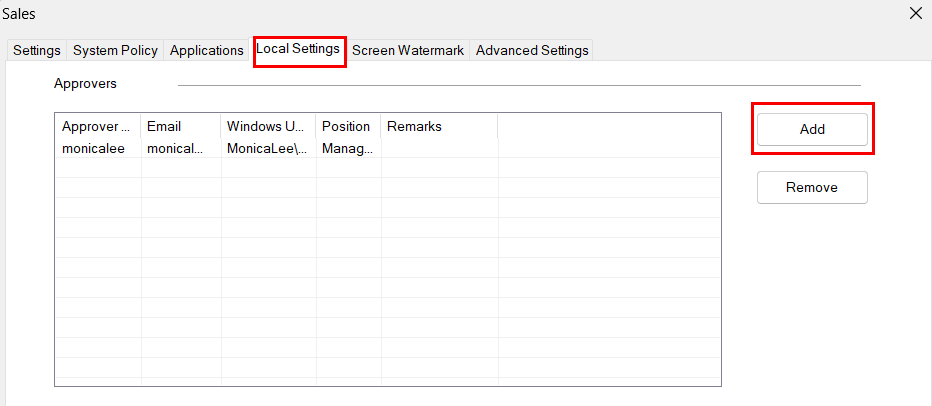
2.1. In Curtain Admin, select a Policy Group and right-click to select "Properties".
2.2. Select "Local Settings" and click "Add" button.
2.3 Select the appropriate approver in "Select Partial Approver" window, and click "OK" .
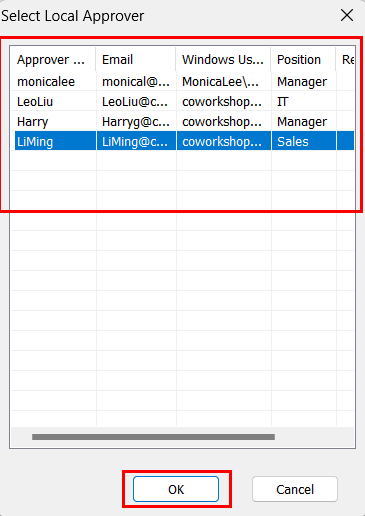
2.4 Approver information is successfully added to the current policy group.
P.S.
1. In order to submit/approve Request, Curtain Client must be installed on approver/requester's workstation.
2. If the approver is not added in the policy group, all users under this policy group cannot use the Send Request function.
3. Please refer to FAQ 00232 for how to submit Send Request in Curtain Client.
Advanced Settings please refer to FAQ 00245 - How to set up advanced settings (e.g. SMTP and One-time Password) for Send Request in Curtain Admin |
| |
| |
| |
| |
| |
|
| |
| |
| |
| |
|
 FAQ
FAQ