
|
 FAQ Home FAQ Home
 Curtain e-locker Curtain e-locker
 Installation Guide Installation Guide
User Guide
Curtain LogTrace
Curtain MonGuard
Curtain PrintTrail
Website Product Page
Curtain e-locker
Curtain LogTrace
Curtain MonGuard
Curtain PrintTrail |
| FAQ No.: | 00303 |
| Category: | Advanced Settings; Curtain MonGuard |
|
| | |
| Question: | How to grant control policy by user/user group in Curtain MonGuard?
|
| | |
| Answer: | Curtain MonGuard's control policies are assigned to computers by default, with support for extension to AD users or user groups. To assign policies based on AD organizational structure, first connect to AD from the Curtain Lite management console and import user information. Upon import, users/user groups are automatically assigned to the default control policy. Administrators may then manually reassign them to other control policies as needed.
Steps for enabling "Assignment of User" in Curtain Lite Admin:
1. Launch Curtain Lite Admin, open File -> Settings -> Assignment of Security Policy.
2. Choose "Assignment of User", and click "OK" button.

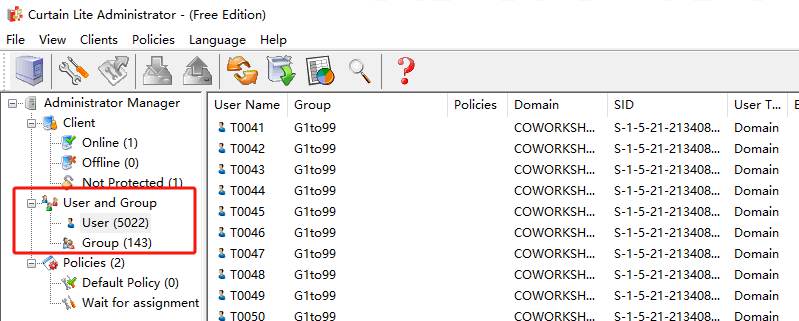
Then "User And Group" will be shown in Curtain Lite Admin.

3. Done.
Steps for importing users and user groups from AD domain:
1. Launch Curtain Lite Admin, open File -> Settings -> LDAP.
2. Check "Enable LDAP" button.
3. Enter LDAP server address, DNS or IP address on "LDAP Server Address".
4. "LDAP Server Port", default port is 389.
5. Recommend to enable "Use Secure LDAP Connection", it means to use secure LDAP connection to AD (default is disable).
6. Enter user name on "LDAP Username" to connect LDAP server.
7. Enter password on "LDAP Password".
8. "LDAP Search Base", enter the root of user or group , should enter CN, OU and DC .
- for search the whole domain, enter "dc=domain name,dc=domain suffix" (e.g. "dc=test,dc=com")
- for search the whole group, enter "ou=organizational unit name,dc=domain name,dc=domain suffix" (e.g. "ou=it,dc=test,dc=com")
- for search single user, enter "cn=username,ou=organizational unit name,dc=domain name,dc=domain suffix" (e.g. "cn=tester,ou=it,dc=test,dc=com")
9. "LDAP Information Caching", for setup caching information of AD (default is 15 minutes).
10. While setting is finished, click "Test connection" button to see whether connect to AD successfully or not.

11. If AD user/user group is imported to Curtain Lite Admin successfully, they will be shown under "User And Group" in Curtain Lite Admin as below.
12. Done.
Steps to assign users/user groups to different Control Policy Groups:
1. In Curtain Lite Admin, select User/Group in left panel. Then, Users/Groups will be listed out in the right panel.

2. Select users/groups (press Ctrl button for multiple selection).
3. Right click and select "Change Policy" to assign users/groups to appropriate Control Policy Group.

4. Repeat Step 2-3 for assigning other users/groups to appropriate policy groups.
5. Done.
To assign security policies, please refer to FAQ 00304 - How to assign workstations/users to Control Policy Group in Curtain MonGuard |
| |
| |
| |
| |
| |
|
| |
| |
| |
| |
|
 FAQ
FAQ