
|
 FAQ Home FAQ Home
 Curtain e-locker Curtain e-locker
 Installation Guide Installation Guide
User Guide
Curtain LogTrace
Curtain MonGuard
Curtain PrintTrail
Website Product Page
Curtain e-locker
Curtain LogTrace
Curtain MonGuard
Curtain PrintTrail |
| FAQ No.: | 00304 |
| Category: | Curtain MonGuard |
|
| | |
| Question: | How to assign workstations/users to Control Policy Group in Curtain MonGuard?
|
| | |
| Answer: | Curtain MonGuard supports two policy assignment methods:
- Computer-based assignment: Policies are bound to specific computers. Clients automatically apply the default policy after installation, and administrators can manually reassign them as needed.
- User/User Group-based assignment: Policies are bound to AD users or user groups. AD users must first be imported; upon import, they are automatically assigned to the default policy, and administrators can manually reassign them as needed.
Choose the method that fits your management requirements. Refer to the steps below for detailed instructions.
Steps to assign workstations to different Control Policy Groups:
1. In Curtain Lite Admin, select Online/Offline in left panel. Then, workstations will be listed out in the right panel.
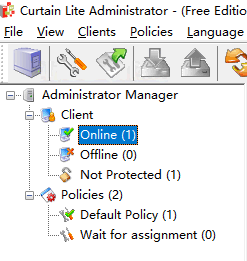
2. Select workstations (press Ctrl button for multiple selection)
3. Drag and Drop selected workstations to appropriate Control Policy Group
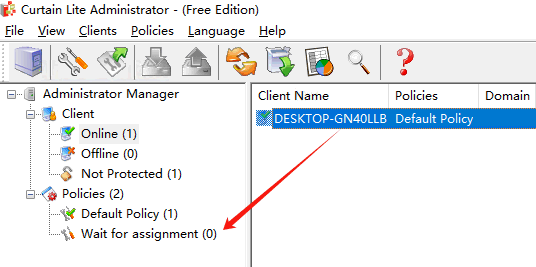
4. Repeat Step 2-3 for assigning other workstations to appropriate policy groups.
5. Done
Steps to assign users to different Control Policy Groups:
1. In Curtain Lite Admin, select User/Group in left panel. Then, Users/Groups will be listed out in the right panel.
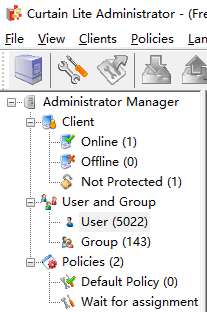
2. Select users/groups (press Ctrl button for multiple selection).
3. Right click selected users/groups, choose "Change Policy" and assign users to appropriate Control Policy Group.
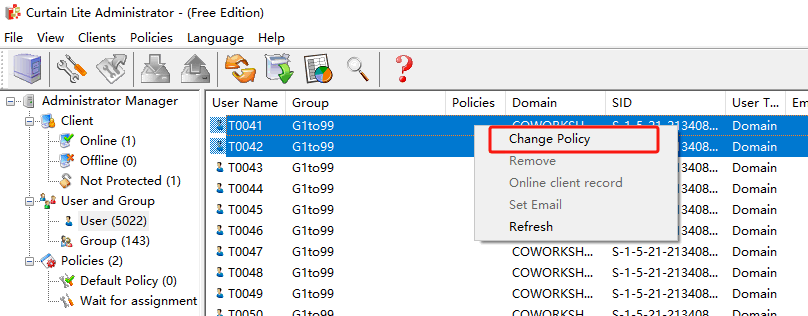
4. Repeat Step 2-3 for assigning other users/groups to appropriate policy groups.
5. Done.
If you need to modify the security policy group, please refer to FAQ 00302 - How to configure Control Policy Group for Curtain MonGuard |
| |
| |
| |
| |
| |
|
| |
| |
| |
| |
|
 FAQ
FAQ