
|
 FAQ Home FAQ Home
 Curtain e-locker Curtain e-locker
 Installation Guide Installation Guide
User Guide
Curtain LogTrace
Curtain MonGuard
Curtain PrintTrail
Website Product Page
Curtain e-locker
Curtain LogTrace
Curtain MonGuard
Curtain PrintTrail |
| FAQ No.: | 00462 |
| Category: | Curtain PrintTrail; Feature - Audit Trail |
|
| | |
| Question: | How to configure Control Policy Group for Curtain PrintTrail?
|
| | |
| Answer: | Steps to configure Control Policy Group:
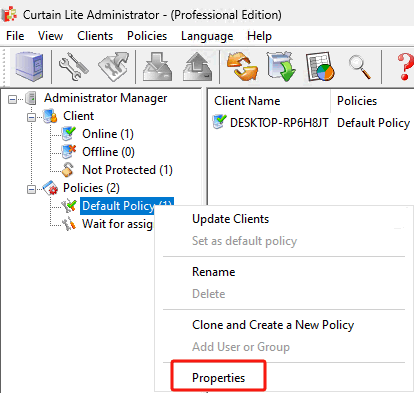
1. In Curtain Lite Admin, select a Policy Group and right-click to select "Properties".
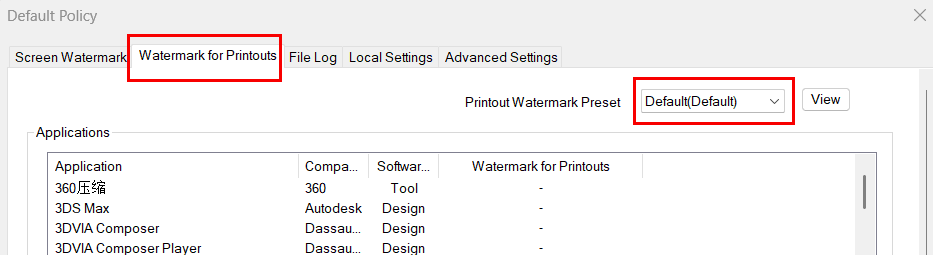
2. Select the application and enable the "Watermark for Printouts" function in a policy group of Curtain Lite Admin .
2.1 On the "Watermark for Printouts" page, select the appropriate watermark preset from the "Printout Watermark Preset" drop-down menu.
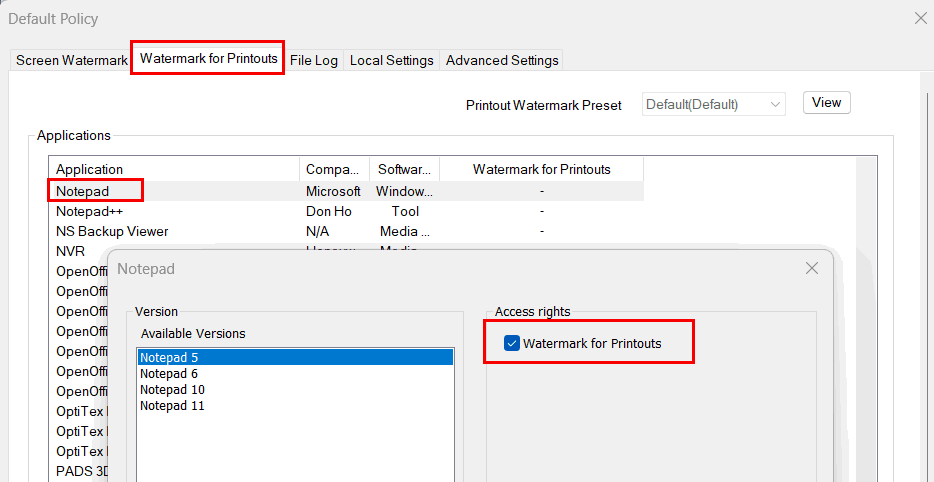
2.2 In Applications list, double-click the application which you want to enable "Watermark for Printouts".
2.3 Select "Watermark for Printouts" and click OK to confirm.
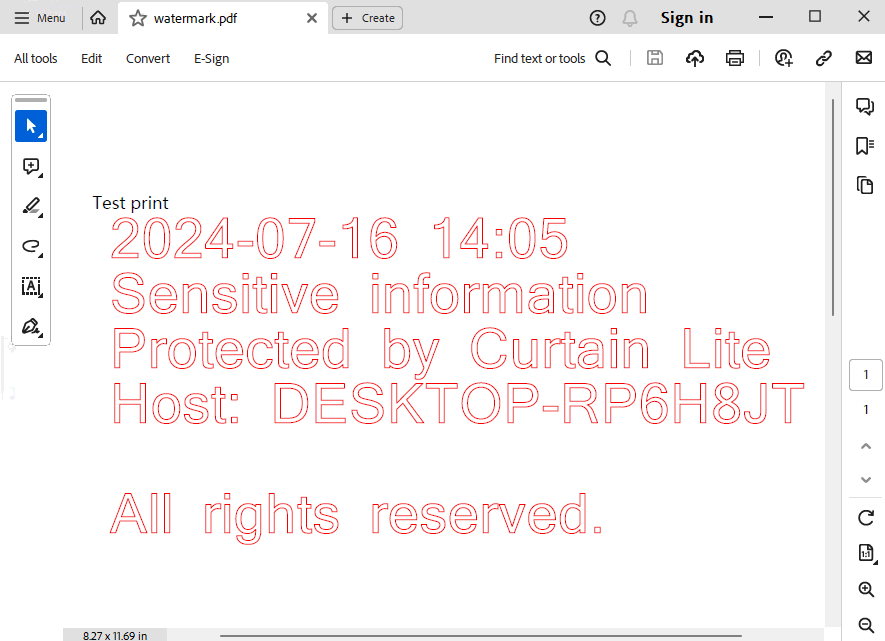
3. View the effect of "Watermark for Printouts" in user's PC.
3.1 In user's PC, open the application with the function of "Watermark for Printouts" , such as Notepad software or txt documents.
3.2 Print documents to a real printer, or "Microsoft print to PDF".
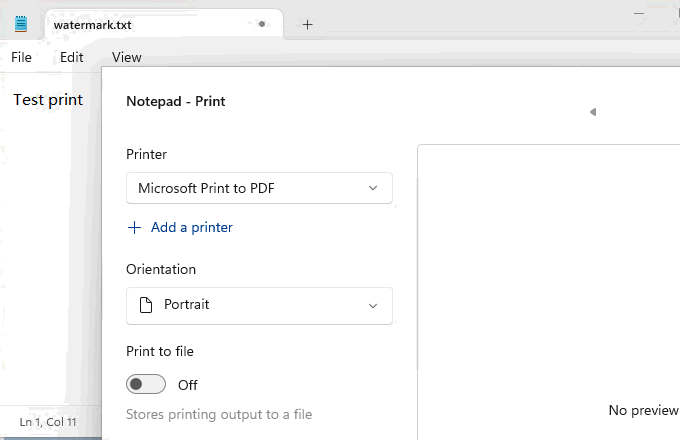
3.3 If "Microsoft print to PDFf" is used, watermark will be also added to the newly generated PDF document.
For related information, please refer to FAQ 00363 - How to grant control policy by user/user group in Curtain Lite? |
| |
| |
| |
| |
| |
|
| |
| |
| |
| |
|
 FAQ
FAQ