
|
 FAQ Home FAQ Home
 Curtain e-locker Curtain e-locker
 Installation Guide Installation Guide
User Guide
Curtain LogTrace
Curtain MonGuard
Curtain PrintTrail
Website Product Page
Curtain e-locker
Curtain LogTrace
Curtain MonGuard
Curtain PrintTrail |
| FAQ No.: | 00305 |
| Category: | Curtain MonGuard |
|
| | |
| Question: | How to define format of screen watermark?
|
| | |
| Answer: | Administrators can define the way how screen watermark display in user's workstations, such as content of watermark, font size, transparency, and etc. Please follow below steps to define the format.
Steps to define format of screen watermark:
1. In Curtain Lite Admin, select "File > Settings".

2. In Screen Watermark tab, select "Enable Screen Watermark" .
Multiple screen watermark settings are supported, allowing you to apply different watermark presets to different policy groups. (Multiple watermarking options are only available in the paid version)
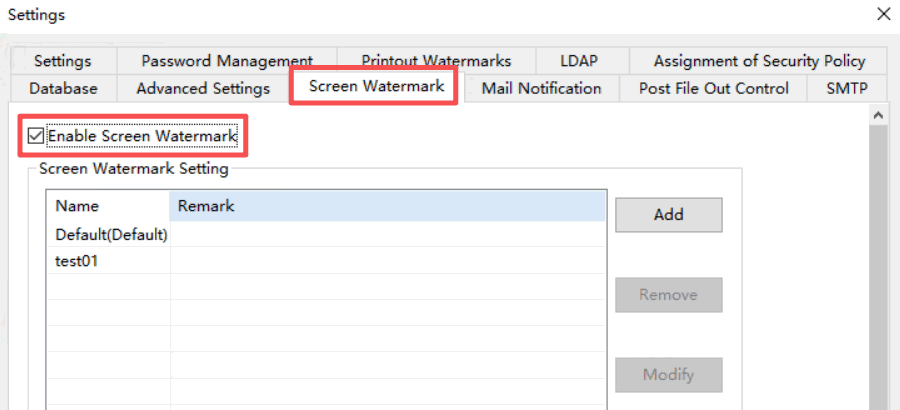
3. Click "Add" (or "Modify") the screen watermark settings scheme.
4. Set the screen watermark parameters and click "OK" to save the settings.
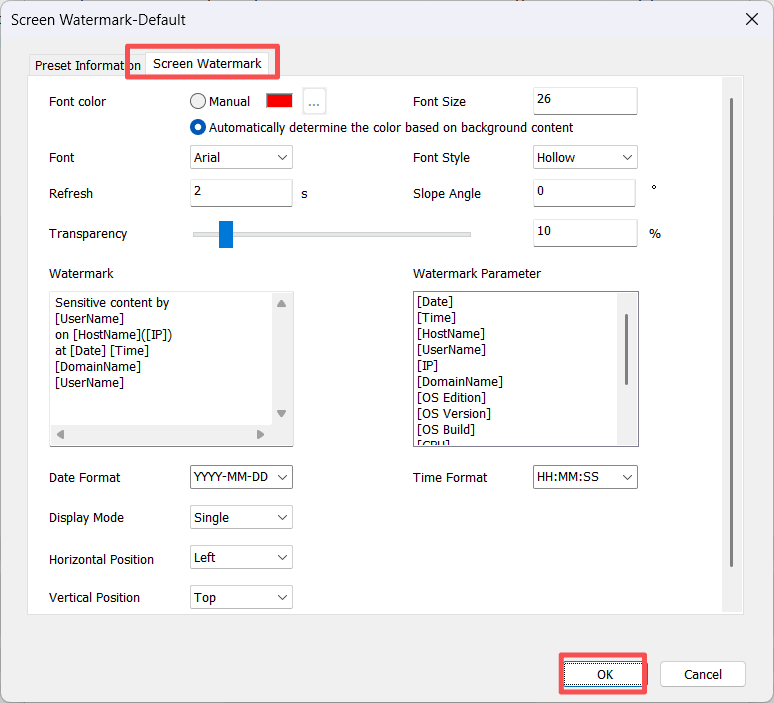
- Color: Color of screen watermark
- Font Size: Font size of screen watermark
- Font: Font of screen watermark
- Font Style: Text Style of screen watermark (Hollow or Solid)
- Display Mode: There are three display options for the screen watermark: Tile, Single, and Self Defined
- Selecting "Tile" will fill the entire screen with the watermark
- Selecting "Single" will display only one watermark on the screen
- Selecting "Self Defined" is only applicable to full-screen watermarks and allows you to set a dynamic watermark (this parameter is only available in the paid version)
- Slope Angle: Slope angle of displaying screen watermark
- Refresh Interval: Time interval for refreshing content of screen watermark
- Horizontal Space: In Tile display mode, horizontal space of each screen watermark
- Vertical Space: In Tile display mode, vertical space of each screen watermark
- Transparency: Transparency for screen watermark
- Text Content: Define content of screen watermark here
- Text Parameter : Displays [Date], [Time], [HostName], [UserName], [IP], [DomainName], and operating system-related parameters in the screen watermark ( [UserName], [IP], [DomainName], and operating system-related parameters are only available in the paid version)
- [Date]: Date
- [Time]: Time
- [HostName]: Computer Name
- [UserName]: Windows Login Username
- [IP]: IP Address
- [DomainName]
- [Operating System Version]
- [Operating System Version Number]
- [Operating System Build Number]
- [CPU]
- [Installed Physical Memory]
- [Total Physical Memory]
- [Available Physical Memory]
- [Hard Disk]
5. Click OK button when finish the setup.
6. Done.
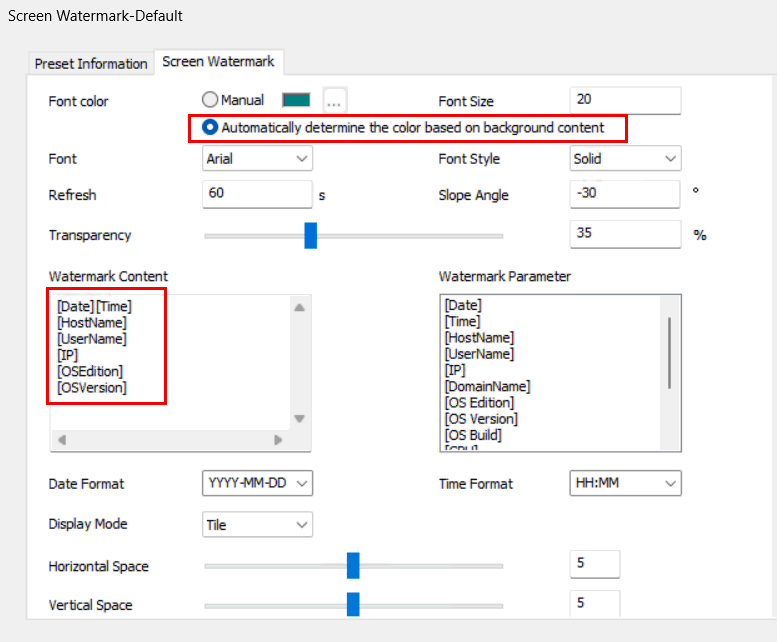
Here is an example.

For related information, please refer to FAQ 00315 - What is high-level installation plan for Curtain MonGuard |
| |
| |
| |
| |
| |
|
| |
| |
| |
| |
|
 FAQ
FAQ