
|
 FAQ Home FAQ Home
 Curtain e-locker Curtain e-locker
 Installation Guide Installation Guide
User Guide
Curtain LogTrace
Curtain MonGuard
Curtain PrintTrail
Website Product Page
Curtain e-locker
Curtain LogTrace
Curtain MonGuard
Curtain PrintTrail |
| FAQ No.: | 00084 |
| Category: | Curtain Admin; Installation |
|
| | |
| Question: | How to configure Control Policy Group?
|
| | |
| Answer: | Steps to configure Control Policy Group:
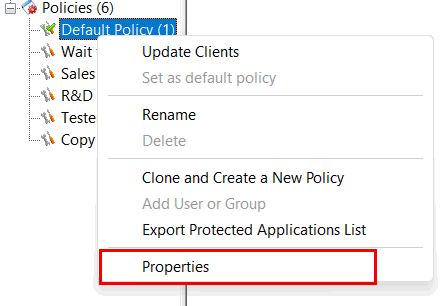
1. In Curtain Admin, select a Policy Group and right-click to select "Properties".
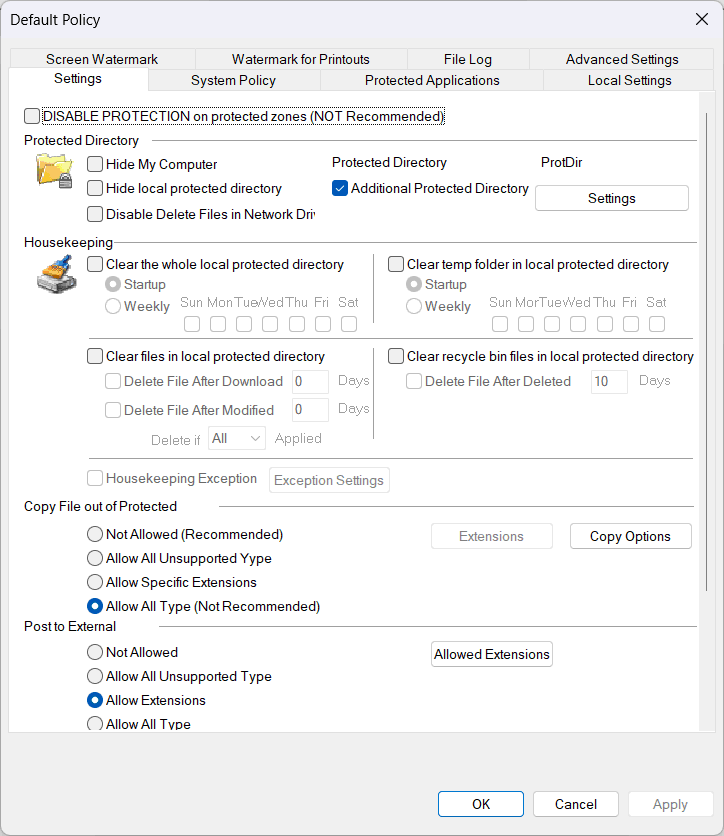
Here is a summary of settings in a Policy Group.
Settings tab
- DISABLE PROTECTION on protected zone
- Additional local protected directory
- Housekeeping of local protected directory
- "Copy out" policy by file extension
- "External User" policy with file extension
- "Encrypt out" policy
System Policy tab
Protected Applications tab
- Configure how to control applications using protected documents (e.g. disallow printing and saving protected document out of protected zone)
Local Settings tab
- Specify Approver(s) who is authorized to approve Send Request of this policy group
- Specify the recipient(s) for Event mail notification(s) of this policy group
- Specify Printer(s) which is included in this policy group
Screen Watermark tab
- Configure whether to enable the screen watermark function
- Configure screen watermark preset profile
- Set trigger conditions for screen watermark
Watermark for Printouts
- Configure whether to enable the printout watermark for applications
- Configure printout watermark preset profile
File Log tab
- Configure whether to enable file operation logging
- Set specific file operations to be logged
- Set specific application operations to be logged (Supported applications: Adobe Reader, Microsoft Access, Microsoft Word, Microsoft Excel, Microsoft PowerPoint)
Advanced Settings tab
- Specify some advanced client settings (e.g. duration of keeping debug log)
We focus on Protected Applications tab here. For other settings, please refer to Chapter 6.
2. In Protected applications tab, double-click the application you want to configure.
3. Define Curtain access rights and click OK to confirm.

4. Repeat Step 2-3 for different applications.
For related information, please refer to FAQ 00083 - How to set a Control Policy Group as default policy |
| |
| |
| |
| |
| |
|
| |
| |
| |
| |
|
 FAQ
FAQ