
|
 FAQ Home FAQ Home
 Curtain e-locker Curtain e-locker
 Installation Guide Installation Guide
User Guide
Curtain LogTrace
Curtain MonGuard
Curtain PrintTrail
Website Product Page
Curtain e-locker
Curtain LogTrace
Curtain MonGuard
Curtain PrintTrail |
| FAQ No.: | 00307 |
| Category: | Curtain LogTrace; Curtain MonGuard; Curtain PrintTrail |
|
| | |
| Question: | How to install Curtain Lite Client?
|
| | |
| Answer: | The Curtain Lite client needs to be installed on user workstations. Here are the steps.
Steps to install Curtain Lite Client:
1. Copy appropriate Curtain Lite client setup package (e.g. CurtainLiteClient_Win32(327400).zip or CurtainLiteClient_X64(327400).zip) to local hard-disk of user's workstation.
2. Unzip the setup package.
3. Run Curtain Lite client setup program. Make sure that you login Windows with administrator right.
Then, you will be asked to select Language for the installation.

4. Select a language and click OK.
5. Read License Agreement. If you accept the agreement, select "I accept the terms of the license agreement" and click Next to continue.

Then, the setup program will check your system environment for the installation, click Next to continue.
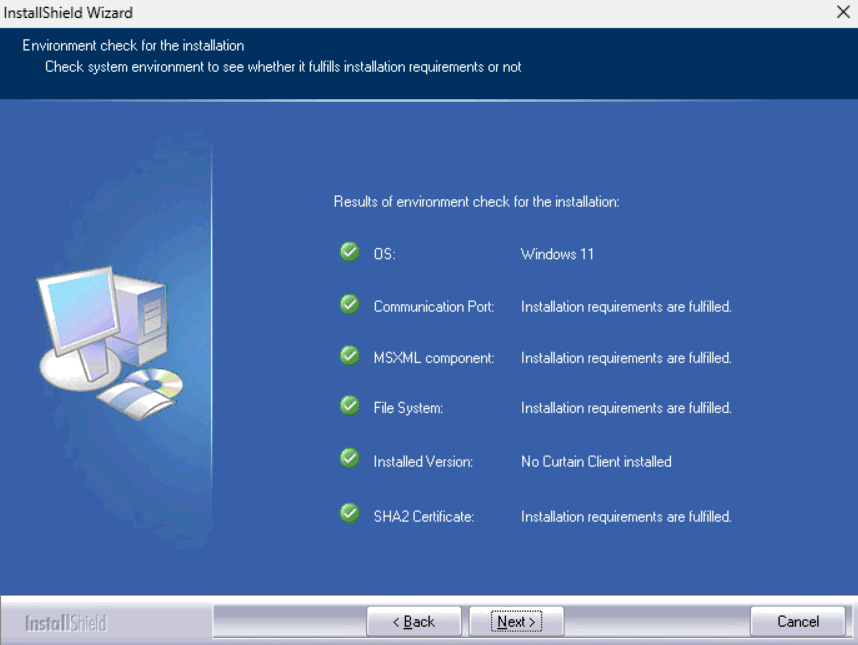
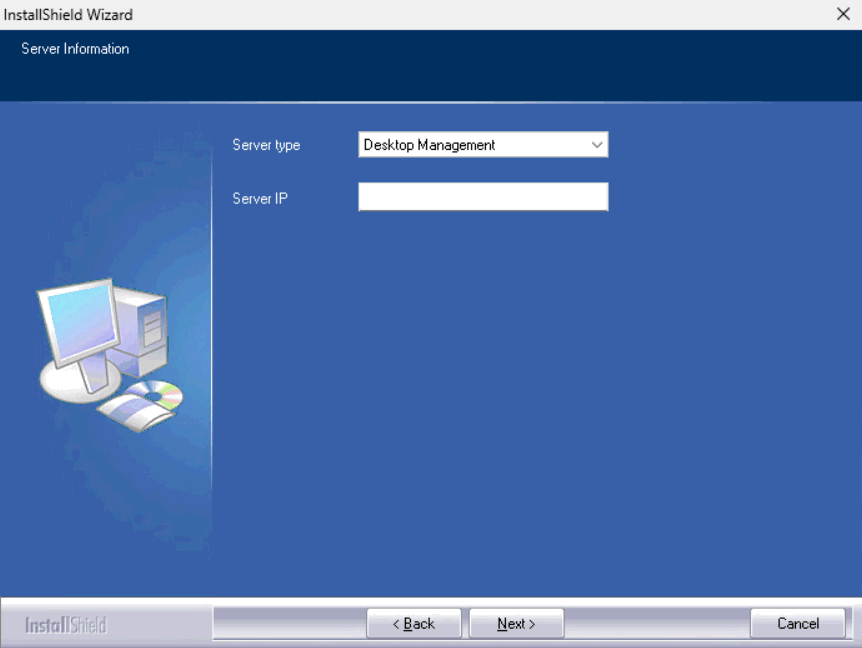
6. Select the "Server type", enter the IP address or computer name of the Curtain Lite Admin (please ensure the information is correct), and click Next to continue the installation.
7. Select Destination Folder for the installation, and click Next to continue.
8. Click Install to start the installation.
9. Reboot the workstation after installing Curtain Lite Client.
P.S. There is no user interface for Curtain Lite Client. You can find it in Windows control panel.
To install the Curtain Lite patch, refer to FAQ 00312 - How to apply Curtain Lite patches |
| |
| |
| |
| |
| |
|
| |
| |
| |
| |
|
 FAQ
FAQ