
|
 FAQ Home FAQ Home
 Curtain e-locker Curtain e-locker
 Installation Guide Installation Guide
User Guide
Curtain LogTrace
Curtain MonGuard
Curtain PrintTrail
Website Product Page
Curtain e-locker
Curtain LogTrace
Curtain MonGuard
Curtain PrintTrail |
| FAQ No.: | 00385 |
| Category: | Curtain Frontier; User Interface |
|
| | |
| Question: | How do external users receive and use files?
|
| | |
| Answer: | Operational Steps for External Users to Use Files:
1. Receive files from the publisher.
2. Use files locally as an external user.
Detailed Setup Steps:
Step 1. Receive Files from the Publisher
Depending on the transmission method chosen by the publisher (refer to FAQ 00342 and FAQ 00354 ), external users can receive files through the following methods:
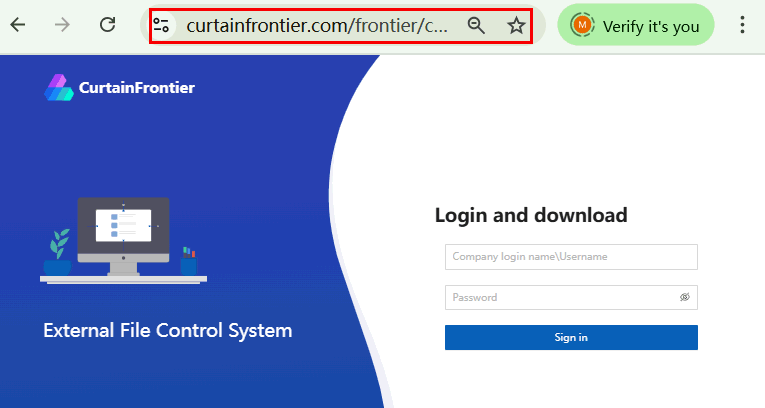
Method 1: Enter the download link in the browser, log in, and download the file directly.
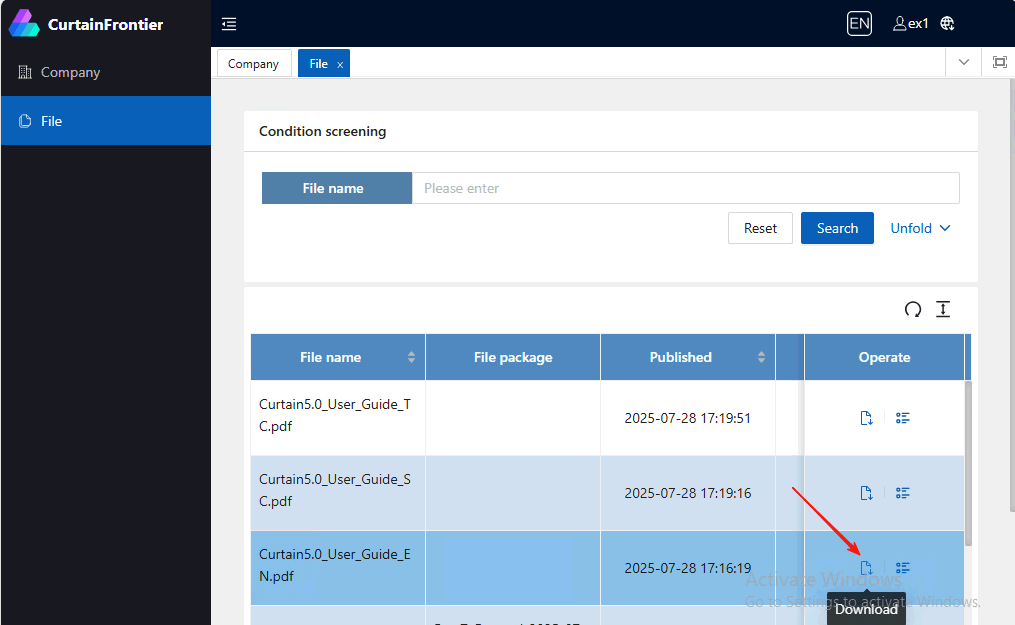
Method 2: Log in to the cloud server with an external account, find the target file, and download it.
Method 3: Receive the file via transmission tools (such as email) used by the publisher.
Step 2. Use Files Locally as an External User
After receiving the encrypted xxxx.cfx file, external users must first decrypt it to the Curtain Frontier local protected area before viewing or using it. The steps are as follows:
2.1 Decrypt the file to the Curtain Frontier local protected area.
Note: The Curtain Frontier client software is already installed on the external user's computer.
For installation instructions of the Curtain Frontier client, refer to FAQ 00340 - How to install and login Curtain Frontier Client?
There are 2 decryption methods:
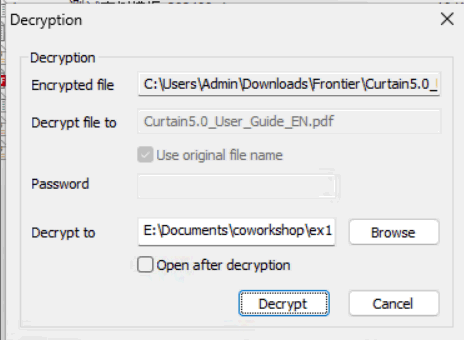
Method 1: Double-click the file, and it will be automatically decrypted to the Curtain Frontier local protected area.
Method 2: Drag and drop the encrypted xxxx.cfx file into the Curtain Frontier local protected area, and the file will be decrypted automatically.
2.2 Open and use the file in the Curtain Frontier client
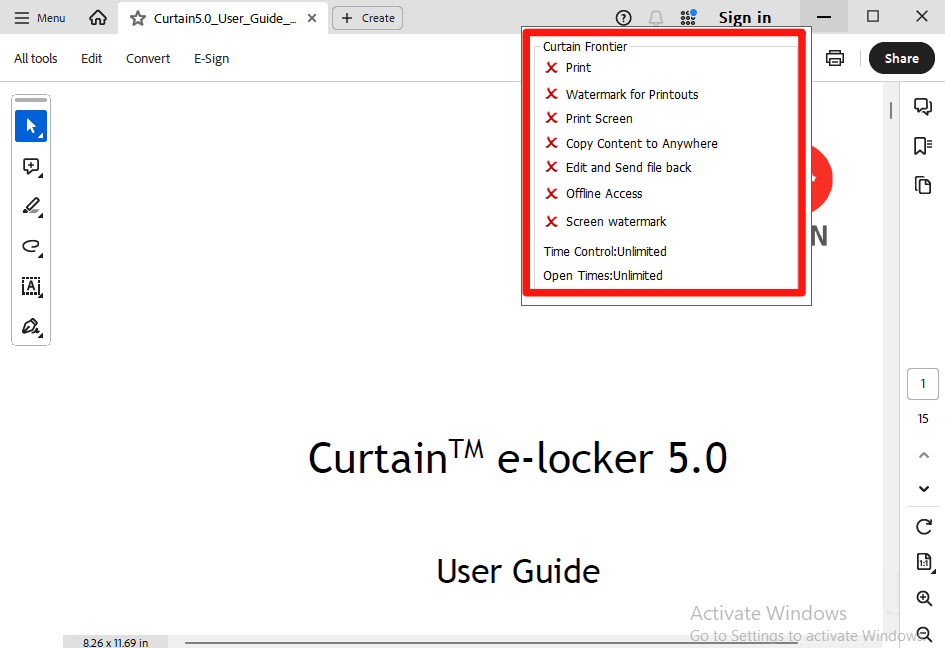
The decrypted file will be stored in the Curtain Frontier local protected area. Select the file and double-click to open it. The usage permissions of the file can be viewed via the red e-locker icon in the upper right corner of the file:
- Print: "X" - Printing of external files is prohibited.
- Watermark for Printouts : "X" - No watermark will be displayed when printing external files.
- Print Screen: "X" - Screenshots of external files cannot be captured using screenshot tools.
- Copy Content to Anywhere: "X" - Copying external files to uncontrolled locations such as USB drives is prohibited.
- Edit and Send file back: "X" - Editing external files and sending them back to the publisher is prohibited.
- Offline Access: "X" - Offline use of external files is prohibited.
- Screen watermark: "X" - No screen watermark will be displayed when opening external files.
- Time Control: Publishers can set a time limit for external files. Files cannot be opened after the time limit is exceeded.
- Open Time: Publishers can set a time limit for opening external files. Files cannot be opened after the time limit is exceeded.
 |
| |
| |
| |
| |
| |
|
| |
| |
| |
| |
|
 FAQ
FAQ