
|
 FAQ Home FAQ Home
 Curtain e-locker Curtain e-locker
 Installation Guide Installation Guide
User Guide
Curtain LogTrace
Curtain MonGuard
Curtain PrintTrail
Website Product Page
Curtain e-locker
Curtain LogTrace
Curtain MonGuard
Curtain PrintTrail |
| FAQ No.: | 00314 |
| Category: | Curtain LogTrace; Curtain MonGuard; Curtain PrintTrail |
|
| | |
| Question: | How to open port 24821 and 24822 in Windows Firewall for Curtain Lite Admin?
|
| | |
| Answer: | If Windows Firewall is enabled, please open port 24821 for Curtain Lite Admin and Curtain Lite Client.
For Windows OS, please add the rules for Curtain Lite Admin as below:
- inbound rule of 24821 port of TCP
- inbound rule of 24821 port of UDP
- outbound rule of 24822 port of TCP
- outbound rule of 24822 port of UDP
For Windows OS, please add the rules for Curtain Lite Client as below:
- outbound rules of 24821 port of TCP
- outbound rules of 24821 port of UDP
- inbound rules of 24822 port of TCP
- inbound rules of 24822 port of UDP
Example of setting up inbound TCP rules for port 24821:
1. Open "Windows Administrative Tools > Windows Defender Firewall with Advanced Security".
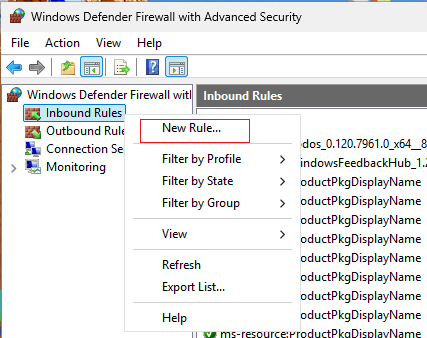
2. Select "Inbound Rules", right-click and select "New Rule".
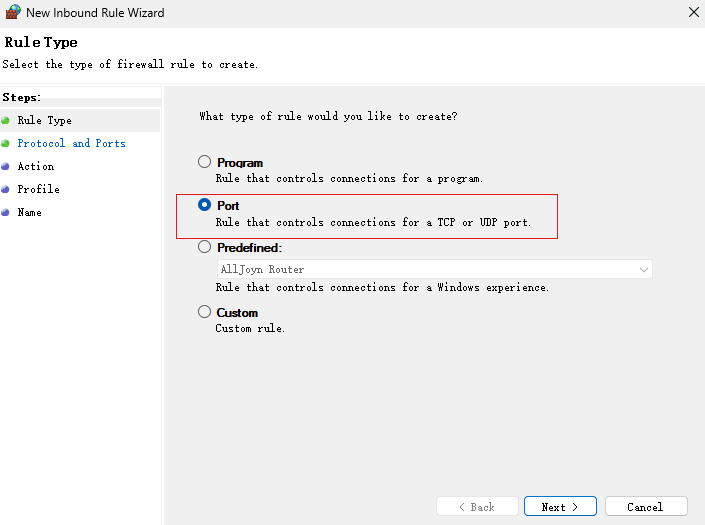
3. The "New Inbound Rule Wizard" will pop up, as shown in the image below. Select "Port" and click "Next".
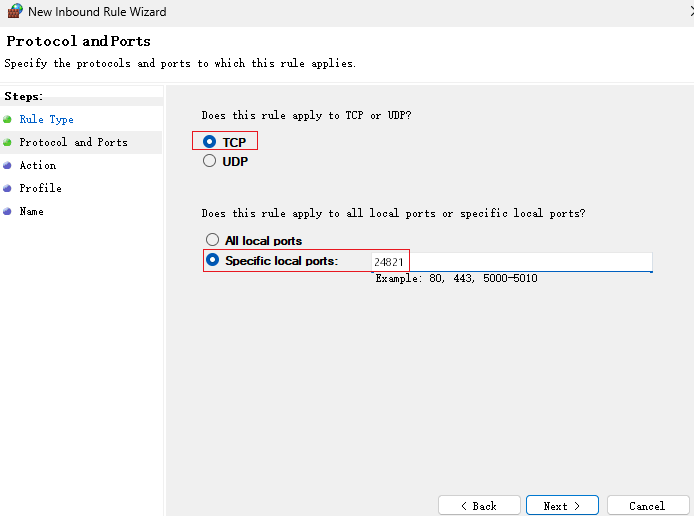
4. Enter "24821" in "Specific local port" and click "Next".
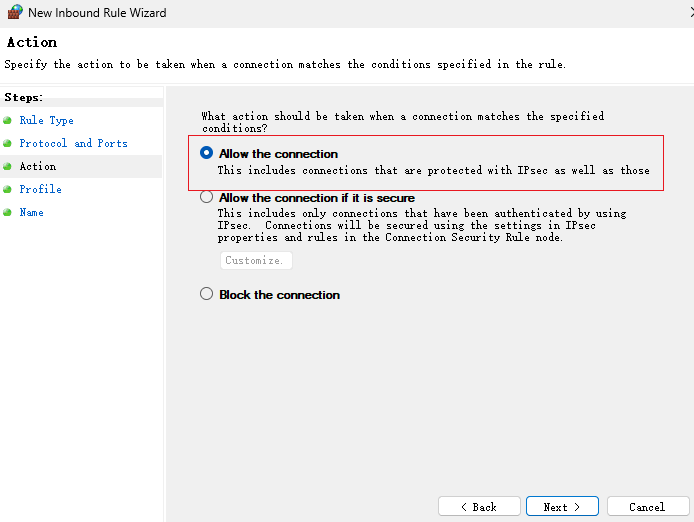
5. Select "Allow the connection" and click "Next".
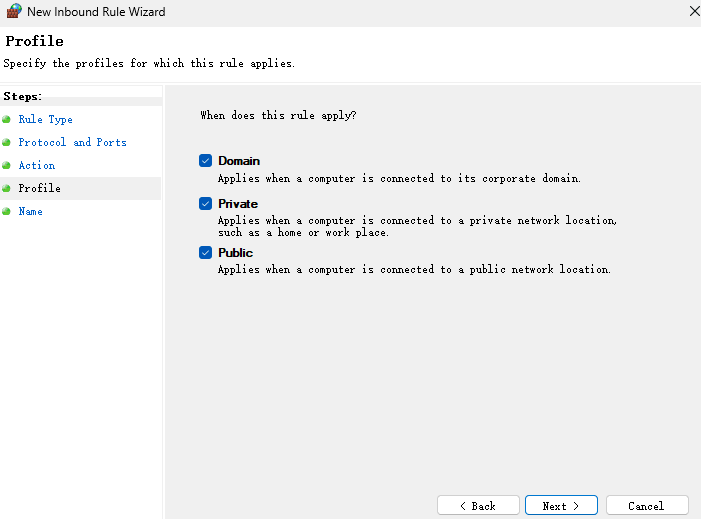
6. As shown in the figure, "Domain", "Private", and "Public" are selected by default. Click "Next".
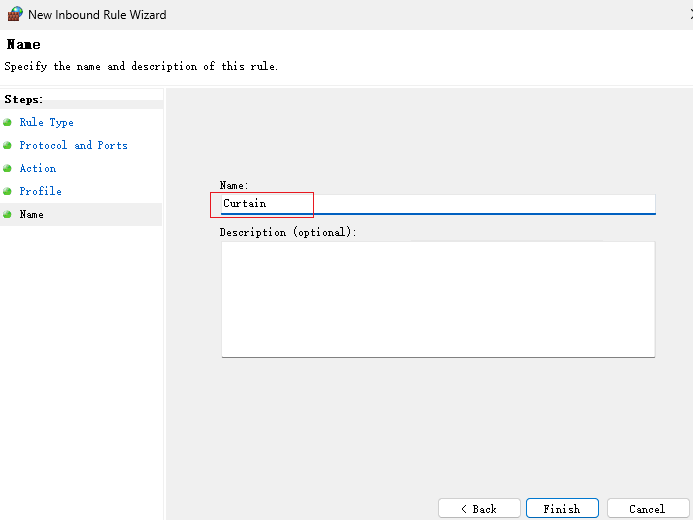
7. Enter "Curtain" in the name field and click "Finish".
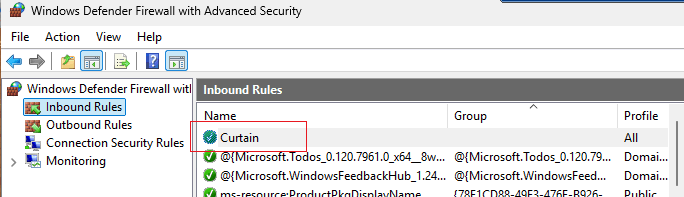
8. Check the list of inbound rules. A new item, "Curtain" will appear in the list, as shown in the image below. The operation of adding an exception port was successful.
Please follow the above steps to add the remaining rules.
For related questions, please refer to FAQ 00118 - How to open port 24821 , 24822 and 8443 in Windows Firewall for Curtain Admin and Curtain Server Plug-in |
| |
| |
| |
| |
| |
|
| |
| |
| |
| |
|
 FAQ
FAQ